Public and private apps
Every published app has an access setting that decides who can open it. You choose it on the Access Control step when you first publish, and you can change it later from the publish panel's Edit Settings. This page explains the two modes, how private apps behave for visitors, and how access control relates to the sign-in feature inside your app, because those are two different things.
Public apps
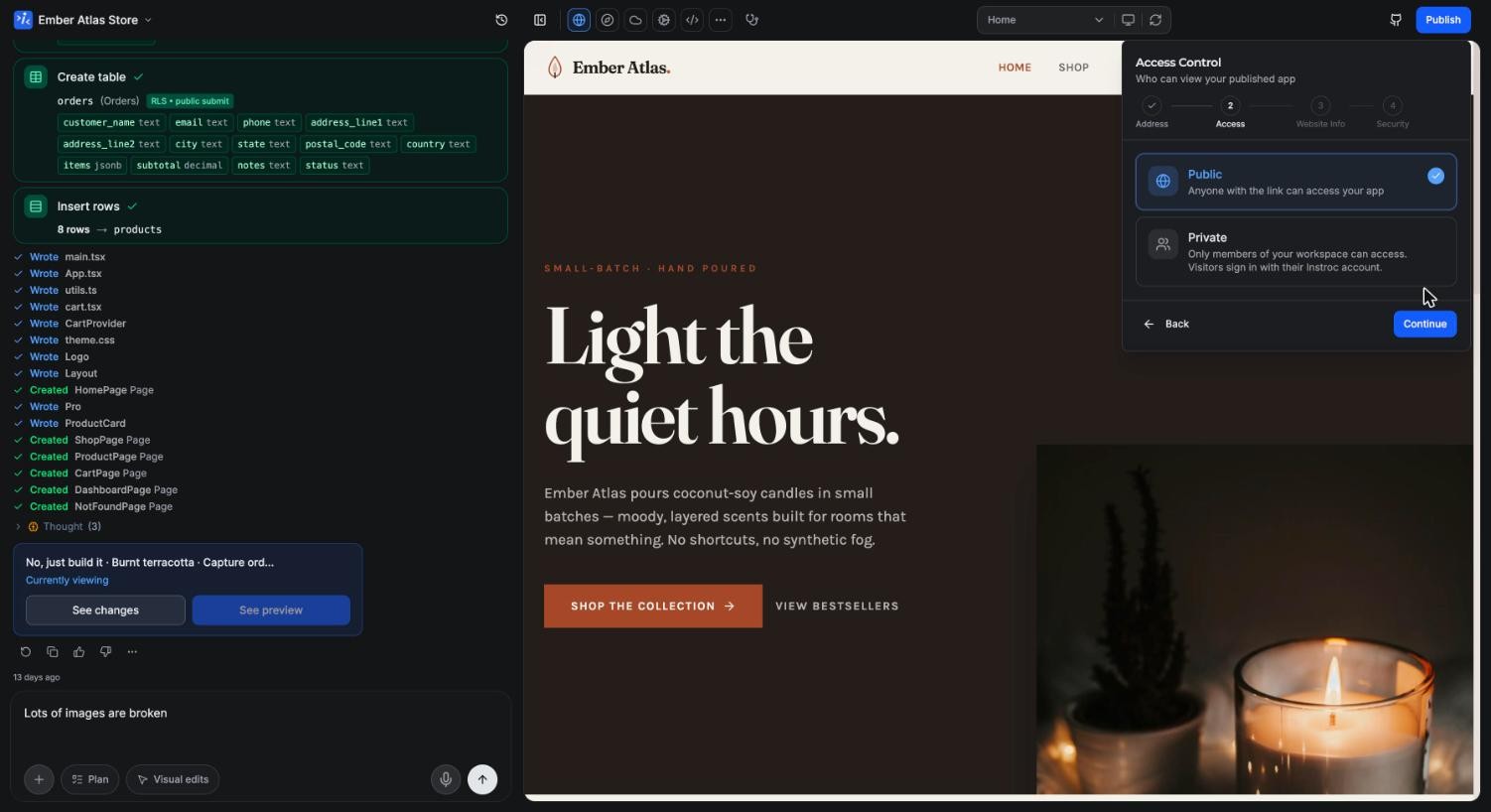
A public app is a normal website: anyone with the link can open it, search engines can find it, and you can share it anywhere. This is the right choice for marketing sites, portfolios, stores, and any product meant for the world.
On the Free plan, public apps show a small Instroc badge and, by default, a remix option that lets visitors clone your app's structure into their own account. Remixing copies the code and the shape of your database, never your data, files, secrets, or users, and the copy carries a "Remixed from" attribution. You can switch remixing off with the Allow remix toggle in the publish dialog. Paid plans show no badge and no remix pill.
Private apps
A private app is only for your workspace. Visitors who open the link are asked to sign in with their Instroc account, and only members of the workspace that owns the project get through. Everyone else sees a sign-in wall, not your app.
Private publishing requires a paid plan (Hobby and up). It is the right choice for:
- Internal tools and dashboards for your team.
- Work-in-progress apps you want a client or teammate to review through a real URL.
- Anything that should never be reachable by strangers, even with the link.
To make an app private, pick Private on the Access Control step. The publish dialog describes it exactly as it works: only members of your workspace can access, and visitors sign in with their Instroc account. Invite people through Members and roles if they should have access.
The Build Story page is public whenever its toggle is on, even if the app itself is private. Turn it off in the publish panel if the story should not be visible.
Access control is not your app's login
These two are easy to mix up, so here is the distinction:
- Access control (this page) gates the whole published app. The gate belongs to Instroc, and the accounts that pass it are Instroc accounts from your workspace.
- In-app authentication is your app's own sign-up and login for its own users, built on Instroc Cloud auth. Those users are your customers; they have accounts in your app, not on Instroc.
They combine naturally. A public app with in-app auth is a normal SaaS: anyone can reach the landing page, and users sign up to get into the product. A private app usually needs no in-app auth at all, because the workspace gate already decides who gets in.
Changing access later
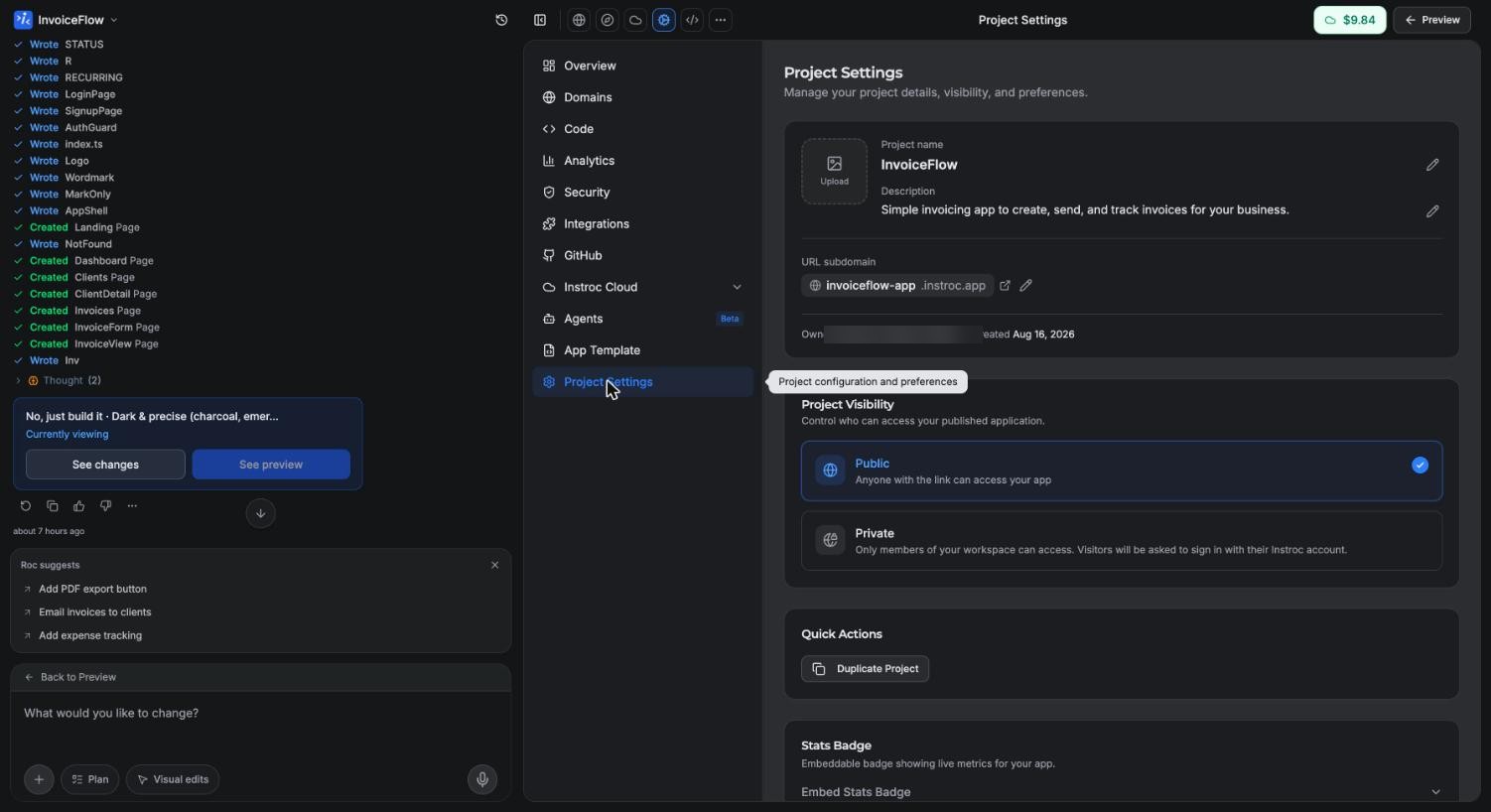
There are two places to flip access on a live app: the publish panel's Edit Settings, and Project Settings, Project Visibility in the workspace, which shows the same Public and Private choice. Switching a public app to private takes effect on the live URL right away; anyone browsing it will hit the sign-in wall on their next navigation. Switching private to public simply opens it up, so double-check there is nothing in the app you would not want public.
Unpublishing entirely
If an app should not be reachable at all, unpublish it: Project Settings, Danger Zone, Unpublish project. The published URL stops working until you publish again. Your project, its data, and its history are untouched, and you can republish any time.
Related pages
- Publishing for the full publish flow.
- Custom domains for putting a private or public app on your own domain.
- Authentication for sign-in inside your app.