Publishing your app
Publishing takes the app you have been building in the editor and puts it on a live URL that anyone can visit. This page walks through the Publish button, the first-publish wizard, what happens while your app goes live, and how to update, rename, or unpublish later. Publishing costs no credits, so you can ship as often as you like.
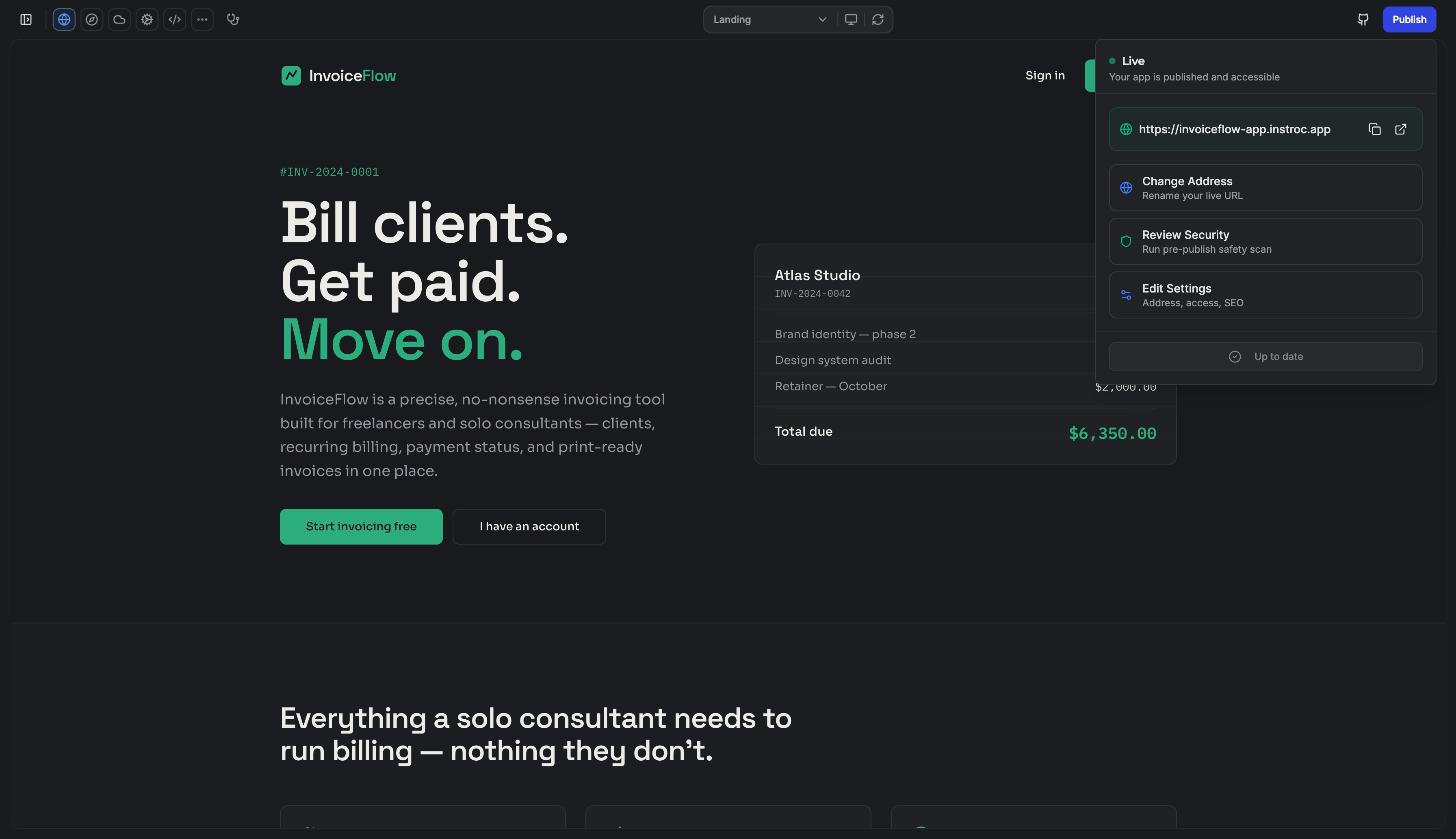
The Publish button
The Publish button sits at the top right of the editor. It is visible to workspace owners and admins, so if you are a collaborator with a different role you will not see it. When you have changes that are not live yet, an amber dot appears on the button to remind you.
Publishing is free. It never consumes credits, on any plan. Once your app is live, the resources it uses while running (requests, database reads, bandwidth and so on) are billed to your Instroc Cloud balance, which is a separate meter from AI credits.
The first-publish wizard
The first time you publish a project, a four-step wizard walks you through the setup.
Step 1: Address
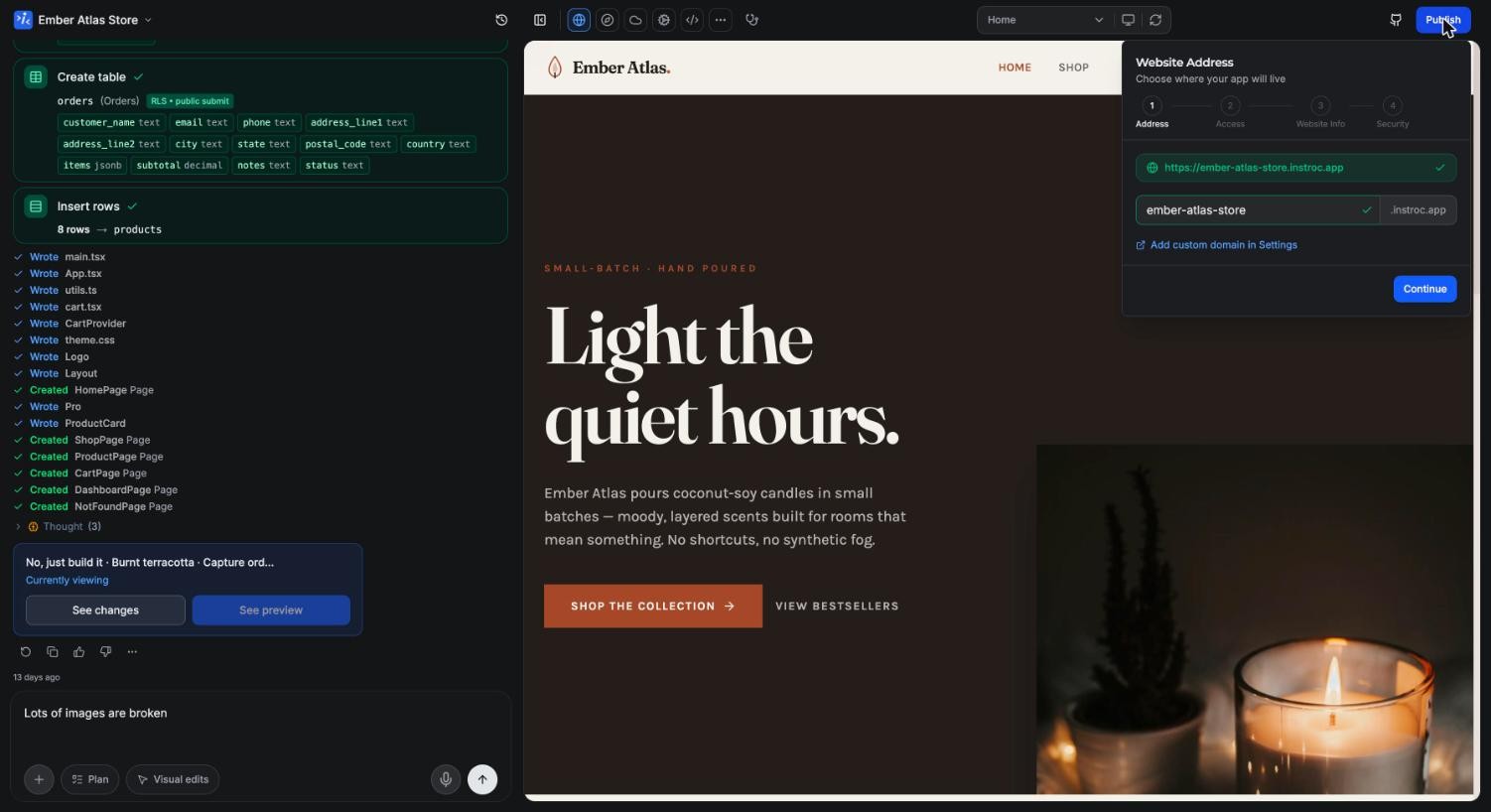
Choose the subdomain where your app will live, in the form yourname.instroc.app. The wizard checks availability live as you type. If your choice is taken you will see "Already taken." along with suggestions. Addresses must be at least 3 characters and can use lowercase letters, numbers, and hyphens.
Step 2: Access Control
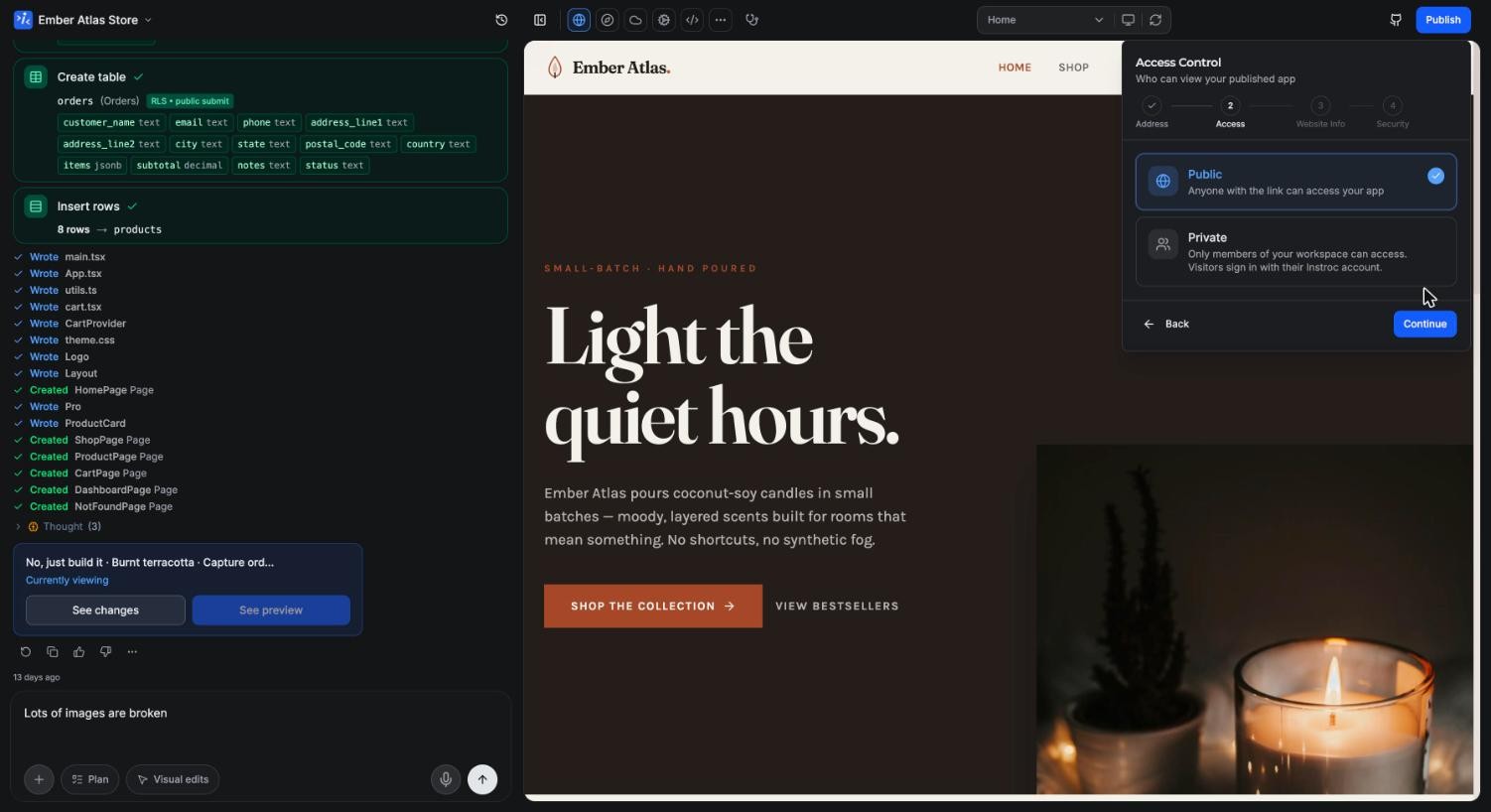
Decide who can open your app. Public means anyone with the link can visit. Private means only members of your workspace can open it, and they sign in with their Instroc account. Private apps are available on paid plans. The two modes, and how they relate to sign-in inside your app, are covered in depth in Public and private apps.
On the Free plan you will also see an Allow remix toggle. When it is on, visitors to your published app can clone its structure into their own account. Remixes copy the schema only, never your data, files, or secrets, and the copy carries a "Remixed from" attribution. You can switch the toggle off if you prefer.
Step 3: Website Info
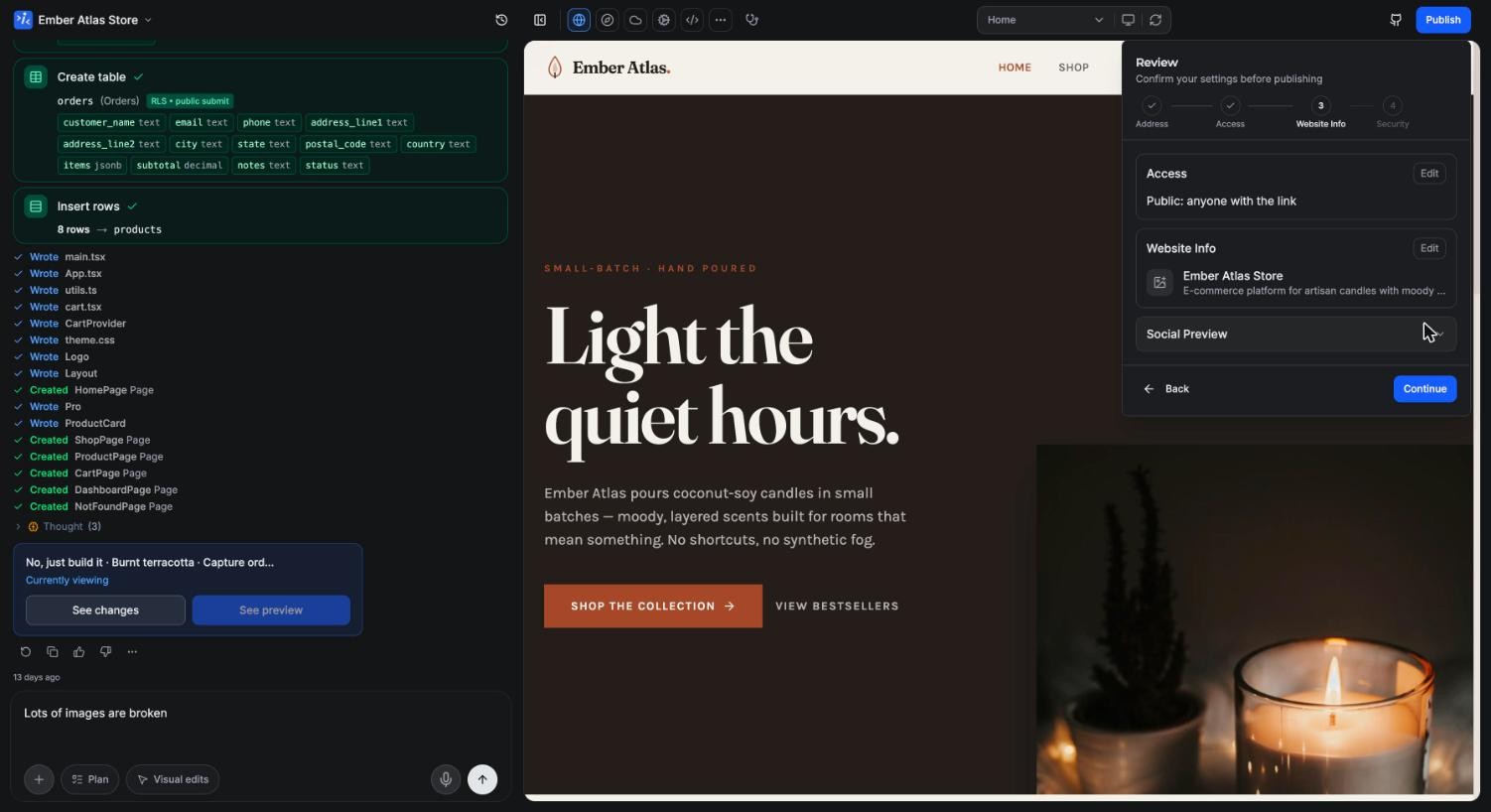
This step covers how your app presents itself. Upload an app icon that doubles as the favicon, set a title, write a description (up to 160 characters), and review the social preview that appears when your link is shared. These defaults also feed your app's SEO; you can add per-URL overrides later in SEO routes.
Step 4: Security Check
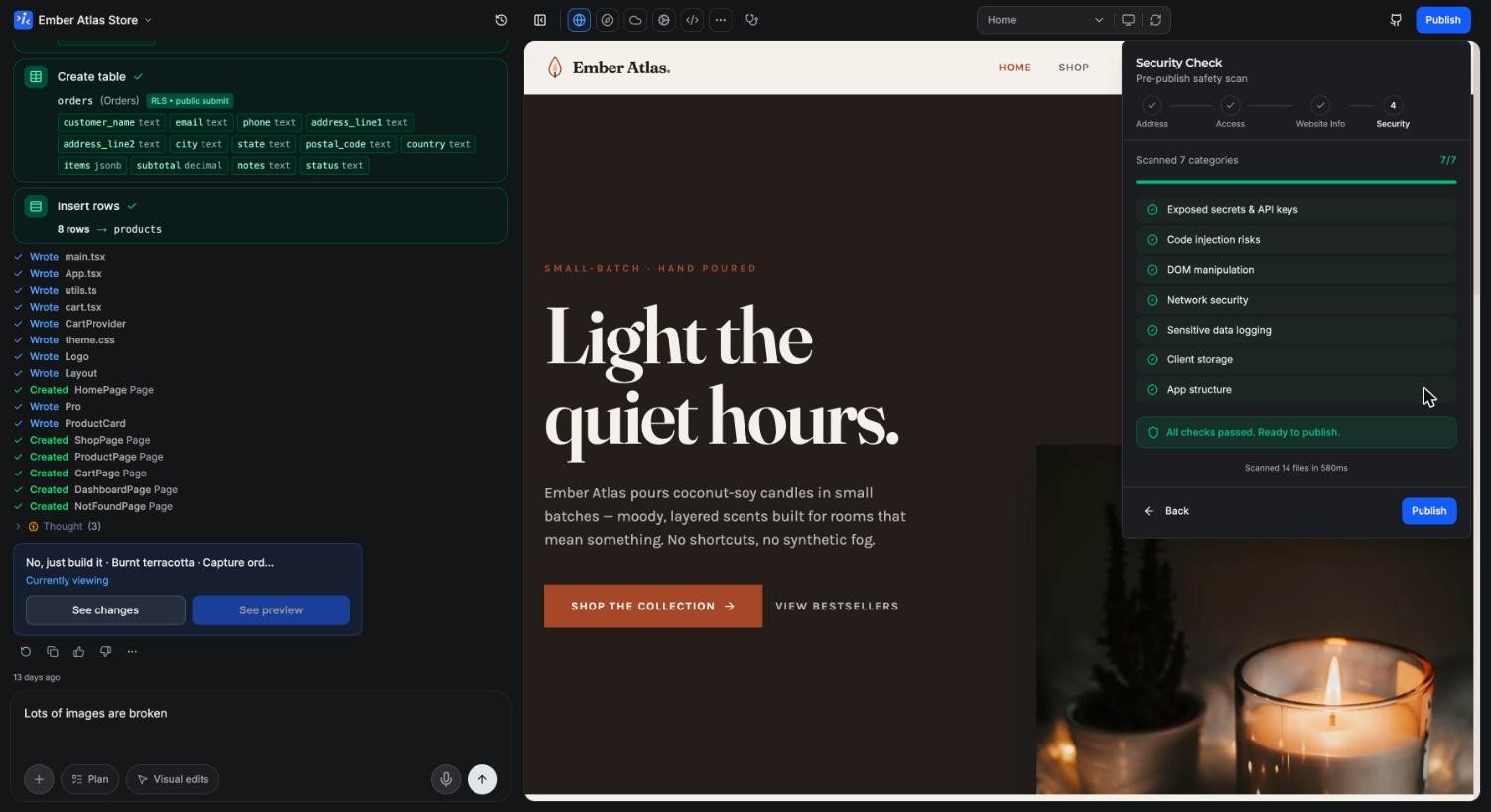
Before anything goes live, Instroc runs an automatic scan of your app. It looks for exposed secrets, code injection risks, DOM issues, unsafe network calls, sensitive logging, storage problems, and structural concerns. Serious findings are blockers: the wizard shows "Fix Issues to Publish" and holds the release until they are resolved. Lesser findings appear as warnings, which you can acknowledge and publish anyway. Roc can fix flagged issues for you through chat.
Going live
Once you confirm, you can watch the progress through four stages: Bundling (preparing your app), Uploading (sending to cloud), Configuring (setting up hosting), and finally Live, with the message "Your app is live!".
The success screen gives you the live URL with copy and open buttons, plus a few extras. You can turn on Build Story to share how you built the app, share directly on X, and grab an embeddable stats badge for your site or profile. All three are covered in Share your app. Edit Settings and Republish are one click away.
Right after publishing is a good moment to check Analytics. Every published app includes visitor analytics on all plans, no setup needed.
Updating a live app
After the first publish, the popover shows a Live view with your primary URL. If you have connected a custom domain, it takes precedence and your subdomain is shown as "Also live at...". From here you can Change Address, Review Security, or Edit Settings.
Instroc tracks whether your published version matches your latest work. When changes are pending, the footer shows an Update button; when everything matches, it reads "Up to date". Updating rebuilds and republishes without touching your address or settings.
Renaming a live address
You can change your subdomain at any time, but treat it with care. The editor warns you: "Renaming moves your live address. Your current link and any shared URLs will stop working." Anyone holding the old link will no longer reach your app, so update anything you have shared. Confirming the change is a separate Save new address action, distinct from republishing, and the old address stops working as soon as you save.
Unpublishing
To take an app offline, open Project Settings and scroll to the Danger Zone, then choose "Unpublish project". Your published URL will no longer be accessible. Your project and all its data stay intact in the editor, and you can publish again whenever you are ready.
The Instroc badge
Apps published on the Free plan display a small Instroc badge. Upgrading to any paid plan removes it. See Plans for what each tier includes.