Code Editor
Everything Roc builds is real code, and you can open it whenever you like. The code editor gives you a full view of your project's files, lets you make direct edits on paid plans, and keeps the preview in sync with what you change. This page covers how to use it, what each plan can do, and how to get your code out of Instroc.
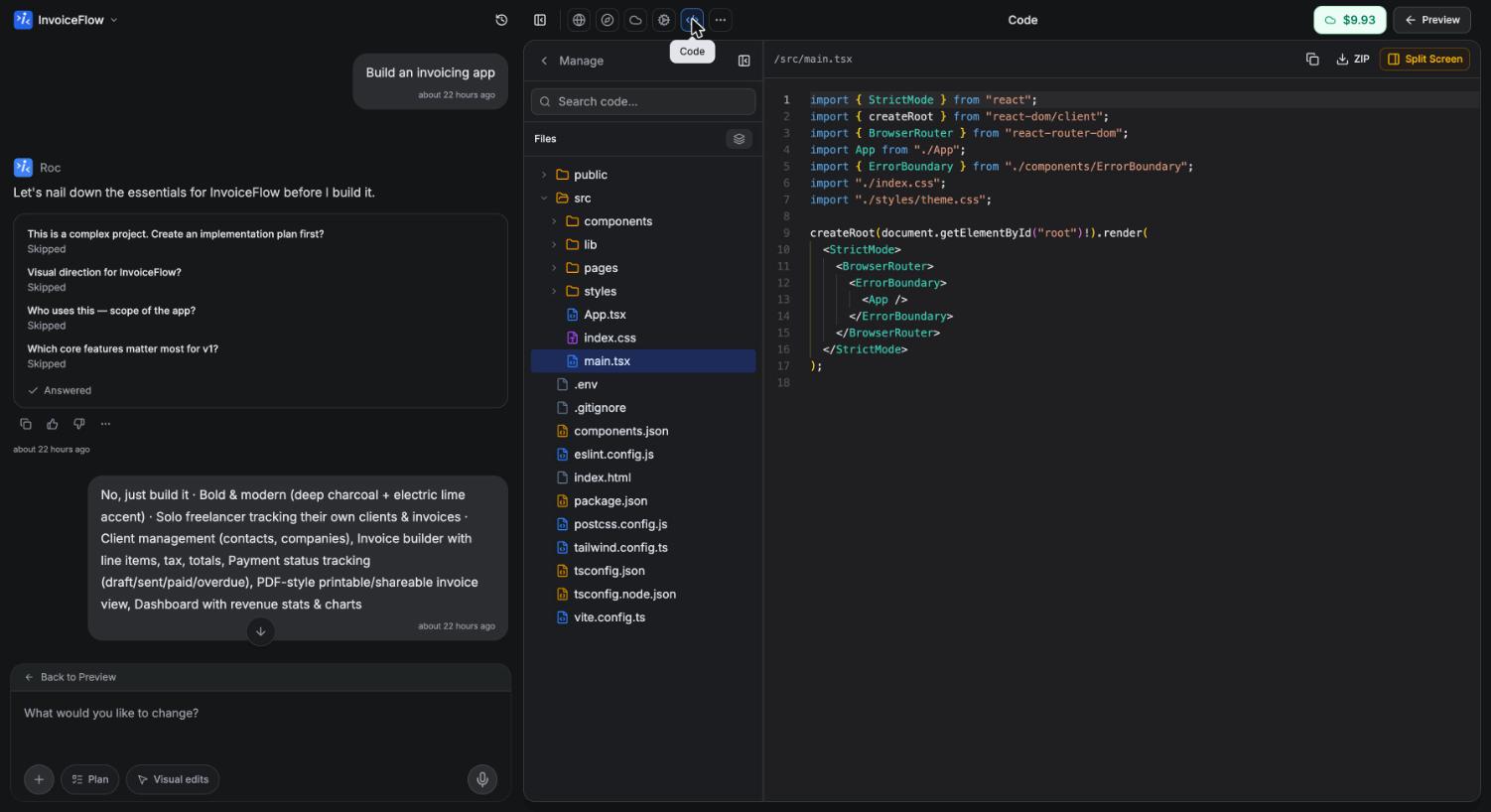
Open it from the Code icon in the preview header, or from Workspace > Code in the editor's workspace navigation.
Finding your way around
The left side of the Code workspace is a file tree showing every file in your project. Click any file to open it. When you need something specific, file search finds files and content across the whole project, and the outline view lists the structure of the open file so you can jump straight to a component or function.
If you want to see cause and effect while you work, turn on Split Screen. It places the code editor and the app preview side by side, so you can edit on the left and watch the result on the right after each rebuild.
Editing directly
On Hobby and higher plans, the editor is fully writable. Changes autosave three seconds after you stop typing, or you can press Cmd+S to save immediately. Saving a change triggers a rebuild, and the preview refreshes once the new build is ready, exactly as it does after a change from Roc. Rebuilds usually take a few seconds; see Live preview for the details.
While Roc is actively writing code, the editor switches to read-only and shows "AI editing..." so your keystrokes and Roc's changes never collide. As soon as Roc finishes, editing unlocks again.
Direct edits and chat requests work well together. Many builders let Roc do the heavy lifting and then drop into the editor for small precise tweaks, like adjusting one line of copy or a single style value.
What each plan can do
Code access differs by plan, but nothing is ever locked away from view.
| Plan | View code | Download ZIP | Edit directly |
|---|---|---|---|
| Free | Yes | Yes | No |
| Hobby and higher | Yes | Yes | Yes |
On the Free plan you can read every file and download your full source code, but typing in the editor is disabled. If you try, you will see: "Direct code editing isn't available on the Free plan. Use the AI chat to change your code, or upgrade to unlock the editor." See the current plans at instroc.com/pricing or the plans page.
Free plan users are never cut off from their own work. Viewing and downloading code stays open on every plan; only direct editing requires Hobby or higher.
Downloading your code
The Download ZIP button exports your entire project as a zip archive, on every plan including Free. You can also copy the contents of any individual file straight from the editor. Your code is yours, and there is no export fee or plan gate on taking it with you.
Syncing with GitHub
If you want your code in a repository, Instroc connects to GitHub. You can create a repo in one click, push your code, and keep sync status visible from the editor. The connection lives in the workspace GitHub section and is also reachable from the preview header and the chat's "+" menu. See GitHub for setup and details.
When to use the editor versus chat
The chat is usually the fastest way to make changes, because Roc reads the relevant files and handles every file a change touches. The code editor shines when you know exactly what you want: a one-character fix, a precise style value, or reviewing what Roc actually wrote. Reading the code Roc produces is also a pleasant way to learn how your app works under the hood. For how Roc approaches edits, see Roc, your AI builder.