Custom domains
A custom domain puts your app on an address you own, like yourbrand.com, instead of your default yourapp.instroc.app subdomain. This page covers buying a domain inside Instroc, connecting a domain you already own, the exact DNS records to add, and what the status flow looks like while your domain goes live.
Custom domains are available on the Starter plan and up, with one custom domain included per project. On Free and Hobby you will see a prompt to upgrade. See Plans for the full comparison.
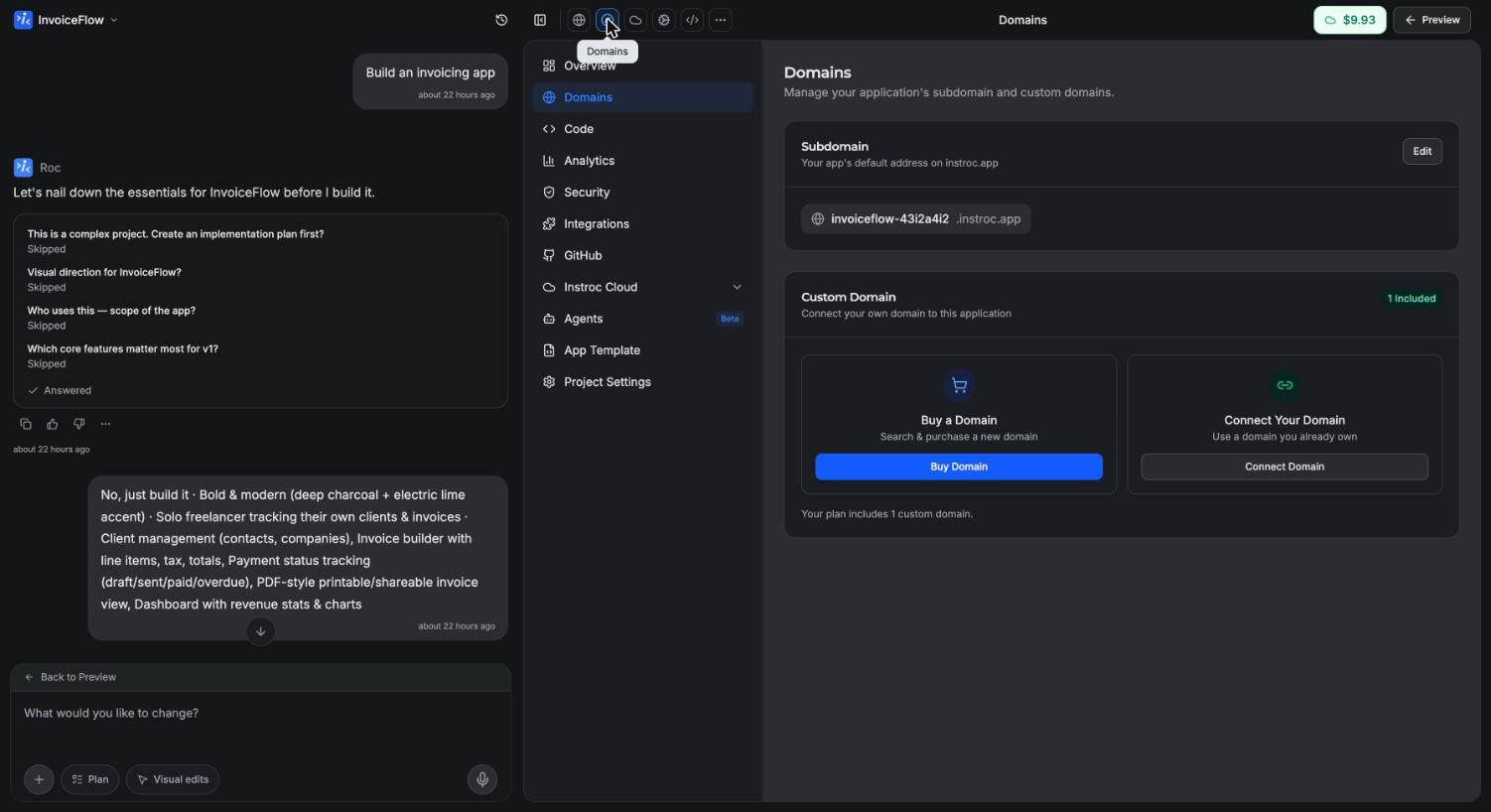
Where domains live
Open your project's workspace and go to Domains. The panel has two parts: a subdomain card for your free yourapp.instroc.app address, and a Custom Domain card for connecting your own domain.
The subdomain card lets you edit your subdomain or generate a random one. Subdomains must be at least 3 characters and use only lowercase letters, numbers, and hyphens. Keep in mind that changing a live subdomain moves your address and breaks previously shared links, as described in Publishing.
Two ways to get a custom domain
The Custom Domain card offers two paths side by side: Buy a Domain if you are starting from scratch, and Connect Your Domain if you already own one.
Buy a domain, without leaving Instroc
If you do not own a domain yet, this is the simplest path there is. Click Buy Domain and a purchase window opens right inside the editor:
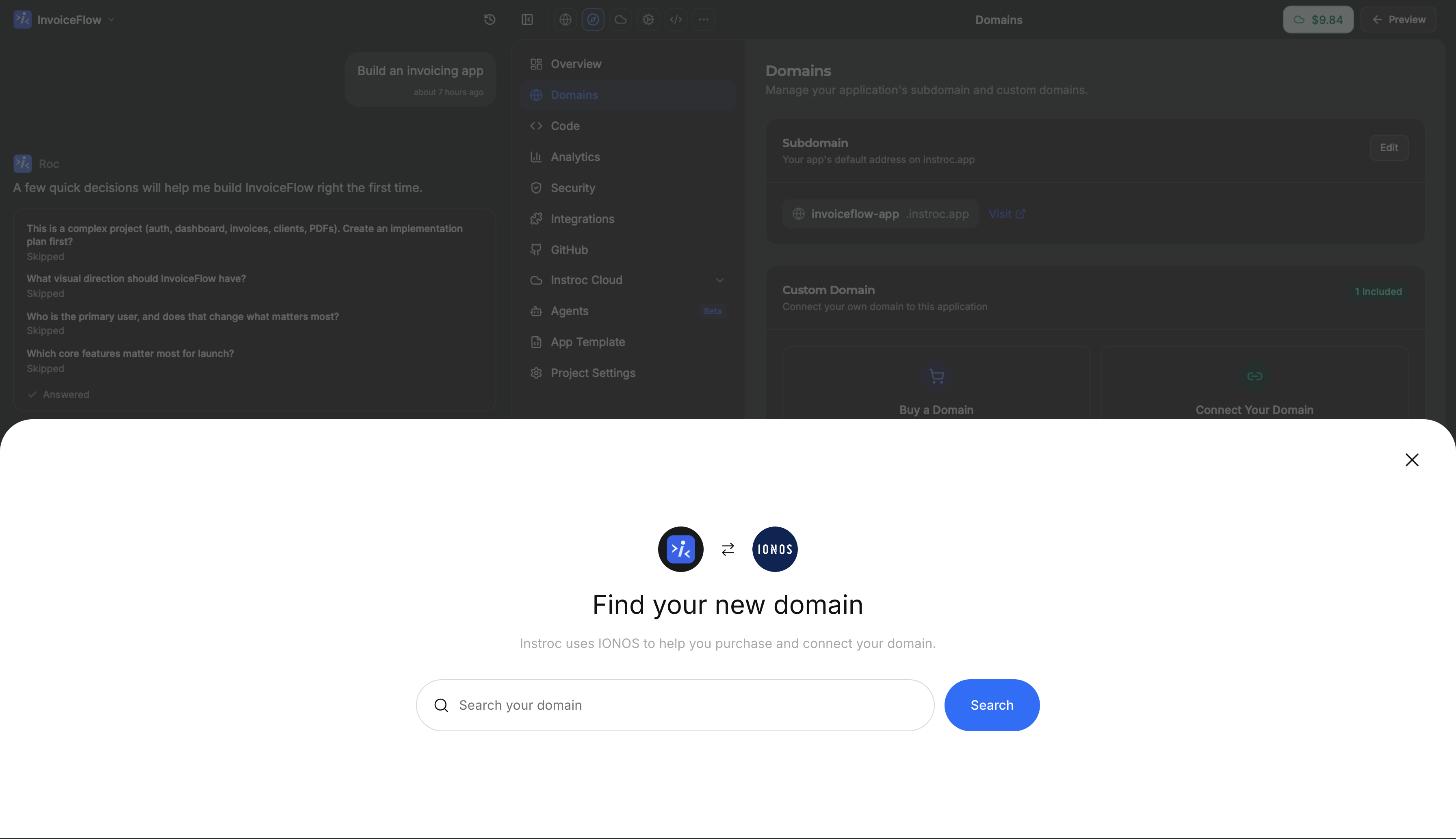
- Search for the name you want. Type a name and see what is available, with alternatives if your first choice is taken.
- Buy it on the spot. The purchase happens through our registrar partner inside the same window. You never leave the editor and never touch a separate registrar dashboard.
- That is it. After the purchase, the DNS is configured for you automatically and the domain connects to your app on its own. There is nothing to copy, paste, or wait on at another website.
Most website builders send you off to buy a domain elsewhere and then walk you through DNS records. On Instroc the whole journey, from "I need a name" to "my app is live on it", happens in one place.
Connect a domain you own
If you already own a domain, choose Connect Your Domain and enter it:
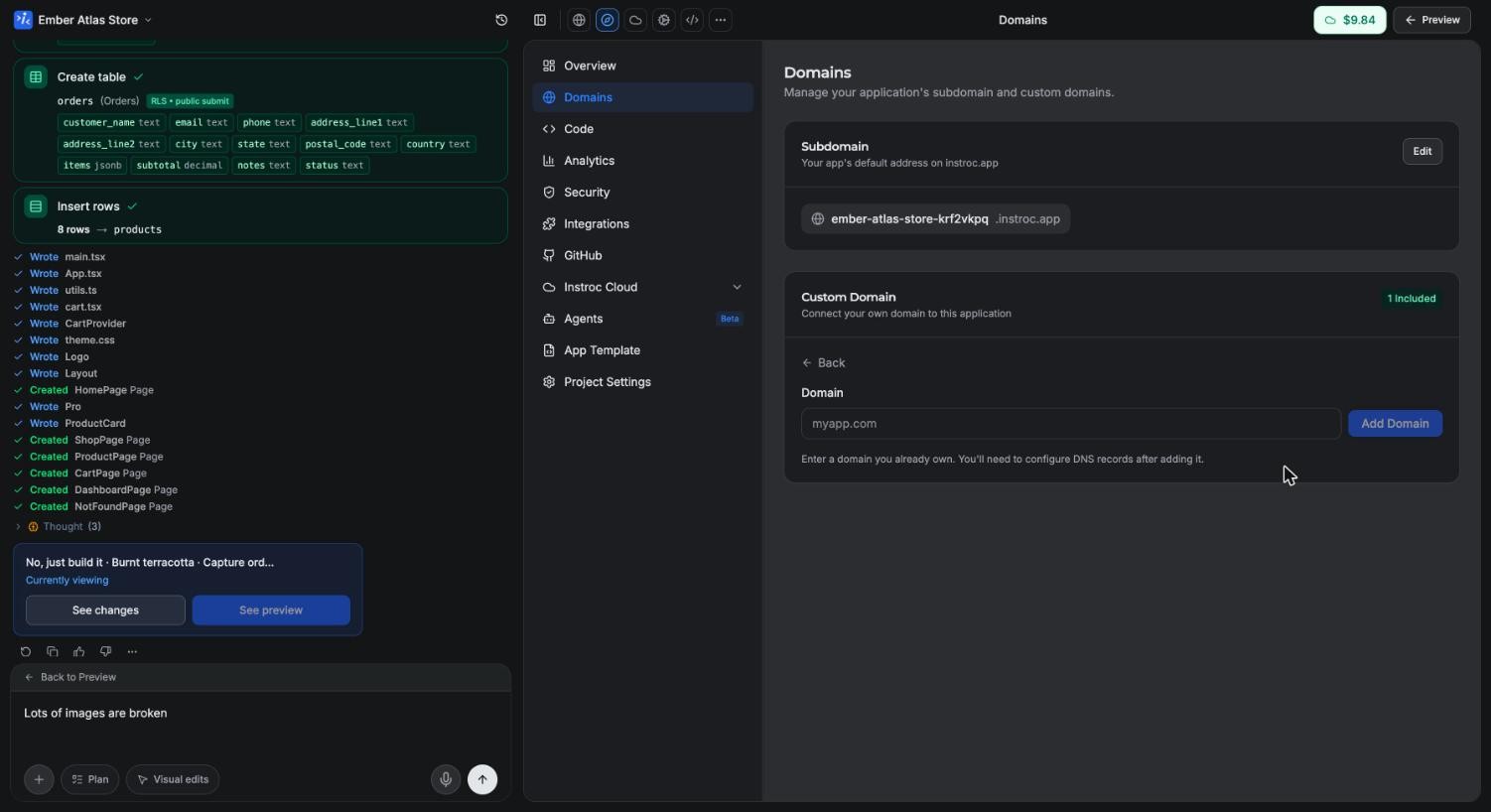
Instroc then shows you the exact DNS records to add at your registrar (the company where you bought the domain). Once the records are in place, Instroc detects them and finishes the setup. The records are covered step by step in the next section.
DNS records to add
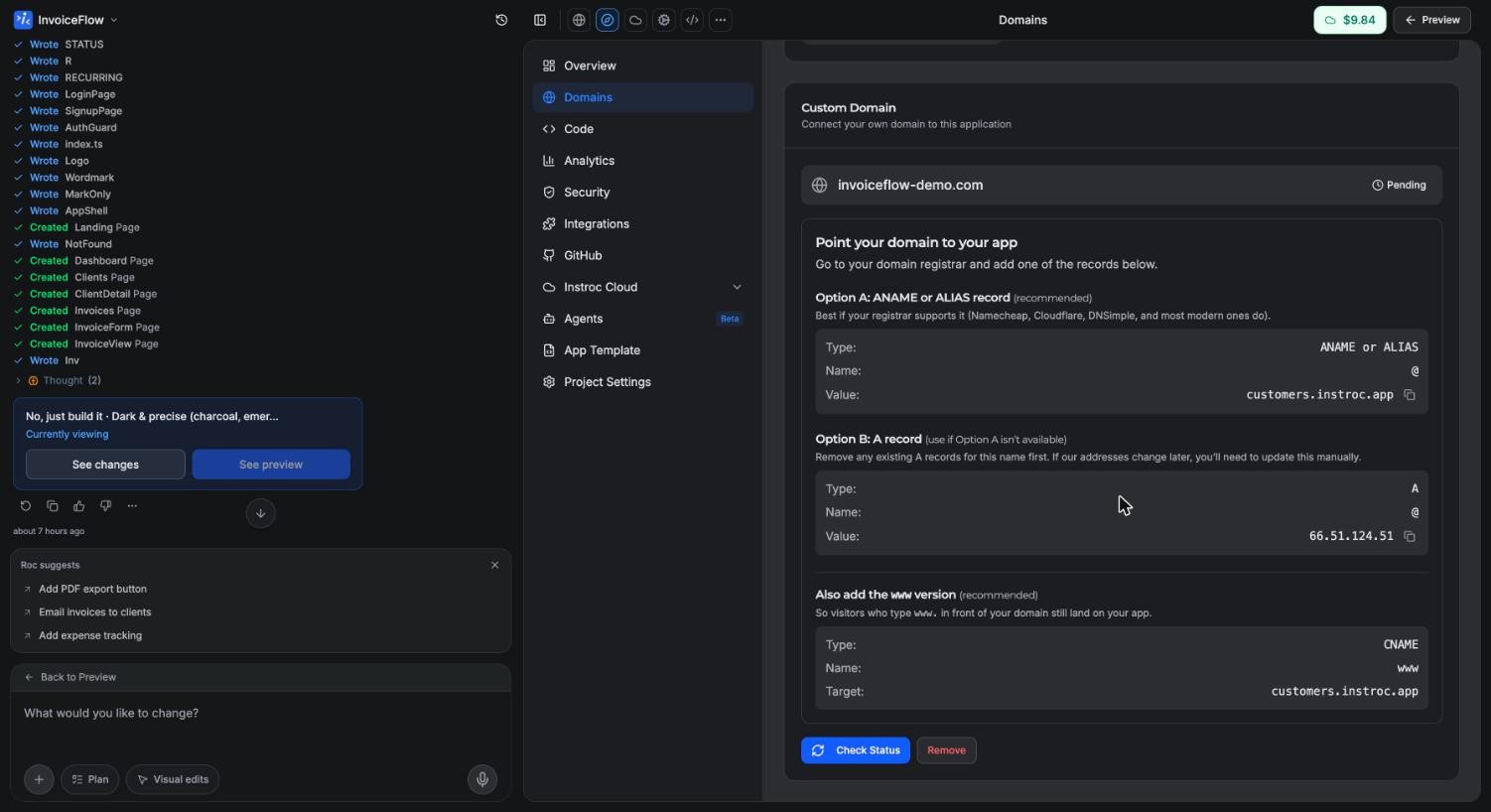
The records depend on whether you are connecting the apex domain (like yourbrand.com), the www variant, or a subdomain (like app.yourbrand.com). The in-app panel shows these same values for your specific domain.
| What you are connecting | Record type | Name | Value |
|---|---|---|---|
Apex domain (yourbrand.com) | ANAME or ALIAS (recommended) | @ | customers.instroc.app |
| Apex domain, if your registrar has no ANAME/ALIAS | A | @ | the IP address shown in the panel |
www (www.yourbrand.com) | CNAME | www | customers.instroc.app |
Any other subdomain (app.yourbrand.com) | CNAME | the subdomain (for example app) | customers.instroc.app |
For an apex domain, prefer the ANAME or ALIAS record when your registrar supports it, and add the www CNAME alongside it so both addresses work. For a subdomain, a single CNAME is all you need.
Status flow
After you add the records, your domain moves through a short pipeline: Pending, then Awaiting DNS, then SSL Provisioning, then Active. Use the Check Status button any time to re-check where things stand.
The SSL Provisioning step is where Instroc issues the security certificate that makes your site load over HTTPS. It usually takes a few minutes. Once the status reads Active, your domain is serving your app.
The very first load on a new domain may briefly show a blank page while everything settles. Give it a moment and refresh.
When the domain is active, it becomes your app's primary address. Your instroc.app subdomain keeps working and shows up in the publish panel as "Also live at...".
Troubleshooting
The status is stuck on Awaiting DNS. DNS changes take time to spread across the internet, a process called propagation. It is often quick but can take up to a day or two depending on your registrar and previous settings. Double-check that the record type, name, and value match the table above exactly, then use Check Status again after a while.
My registrar does not offer ANAME or ALIAS records. That is common. Use the A record option instead, pointing @ at the IP address shown in the Domains panel.
The domain says it is attached to another project. A custom domain can only be connected to one Instroc project at a time. Remove it from the other project first (or from another account if you have more than one), then connect it here.
HTTPS is not working yet. Certificates are issued during the SSL Provisioning step and take a few minutes. If the status is Active and you still see a certificate warning, wait a few minutes and try a hard refresh.
If you get stuck, write to [email protected] and include your domain name and the status you see in the panel.