Create a project
Every app on Instroc starts as a project. This page covers the three ways to create one (describing it, starting from a template, or remixing a published app), how project naming works, and how to keep a growing dashboard organized with workspaces, starring, and search.
Describe an app on the dashboard
The main way to start is the prompt box on the dashboard: "What do you want to build?" Write what you want, press send, and Instroc creates the project right away and opens the editor, where Roc asks a few quick questions before building (you can skip them, or say "just build it" to go straight to the build). There is no setup form and no framework to choose; every project is a complete web app.
The prompt box has a few extras worth knowing:
- Attach files. The "+" menu lets you attach a file or take a screenshot, useful for sharing a logo, a spreadsheet of content, or a design you want Roc to match.
- Plan toggle. Turn on "Plan" ("Plan first, then implement") and Roc writes a step-by-step implementation plan first, so you can review the approach before building starts.
- Voice input. Tap the mic and describe your app out loud instead of typing.
Prompts can be up to 4,000 characters, so do not be shy about detail. Good prompt structure is covered in Prompting best practices.
Start from a template
If you would rather begin from something working, browse the template gallery at instroc.com/templates, from the Templates tab on the dashboard, or the hand-picked Showcase at /discover. There are around 45 official templates across categories like E-commerce, Portfolio, CRM, Admin Dashboard, Landing Pages, and Finance, and most include a working backend with auth, a database, and an owner-only admin page.
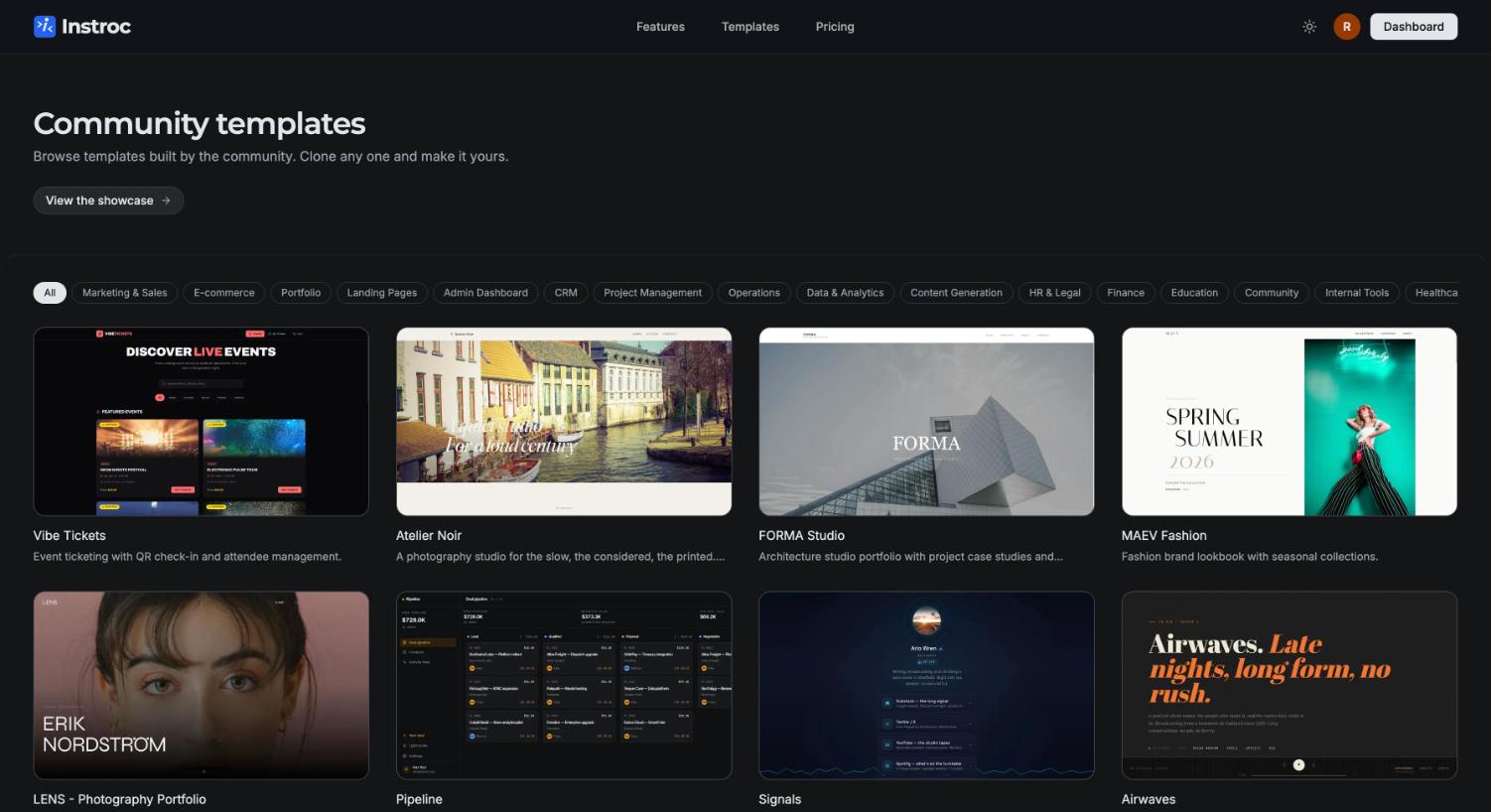
Each card opens a preview with the actual template running live, so you can click through it before committing. Choose Use Template, confirm "Clone this template?", and a fresh copy lands in your dashboard and opens in the editor. From there it is your app: ask Roc to reshape it, swap the content, and make it yours. More detail in Templates.
Remix a published app
Free published apps can show a "Remix with Instroc" pill to visitors. Clicking it clones the app's structure and code into your own dashboard, with attribution back to the original. A remix copies the schema and code only, never the original app's data, files, or secrets, and owners can turn remixing off.
Naming your project
Name your app inside the prompt ("Build a booking site for my studio, Pawfect") or answer the name question Roc asks before building, and Roc uses that name as the brand across the app: the title, the navbar, the footer. If your prompt clearly implies a brand, Roc may name the project accordingly on its own.
Nothing is locked in. Rename a project anytime from its card menu on the dashboard or from Project Settings in the editor.
Organizing your projects
There are no folders on Instroc. Instead, organization is built from four pieces that scale better as you grow:
- Workspaces. Every project lives in a workspace. Use separate workspaces to divide client work from personal projects, and invite collaborators on plans that include them (see Plans).
- Starring. Star the projects you touch daily and find them under Starred in the sidebar.
- Search. Press Cmd+K (Ctrl+K on Windows) anywhere in the dashboard to search your projects.
- Filters. The All Apps page lists everything with search plus filters for sort order (Newest, Oldest, Last updated, Name), visibility (Public or Private), status (Published or Draft), and creator.
Each project card also has a menu with quick actions: open in a new tab, view the published site, rename, duplicate, view analytics, publish as a template, and transfer to another workspace.
The card menu also includes Delete, and the same action lives in Project Settings, Danger Zone inside the editor. Deleting a project takes its live app offline immediately, releases any custom domain, and cannot be undone from the product, so download a ZIP from the code editor first if you might want the code later. For team setups, projects can also be moved between workspaces instead of deleted.
Limits to know
Instroc places no cap on how many projects you keep; every plan includes unlimited projects. Two practical limits apply: prompts max out at 4,000 characters, and you can create up to 10 new projects per hour, which exists purely to prevent abuse and is hard to hit in normal use.
Next steps
Once your project opens in the editor, take the tour in Editor overview, then follow Deploy your app when you are ready to go live.