Integrations overview
Integrations connect your Instroc app to outside services like Stripe for payments, Resend for email, or Slack for notifications. This page explains where the Integrations panel lives, what each integration does, how connecting works, and how integration usage is billed, so you know exactly what to reach for when your app needs to talk to the outside world.
Integrations are set up per project. You will find them in the editor workspace: open your project, switch to the Workspace view, and choose Integrations in the navigation. The panel header reads "Connect services to your project", and each service appears as a card with a Connected or Finish setup pill.
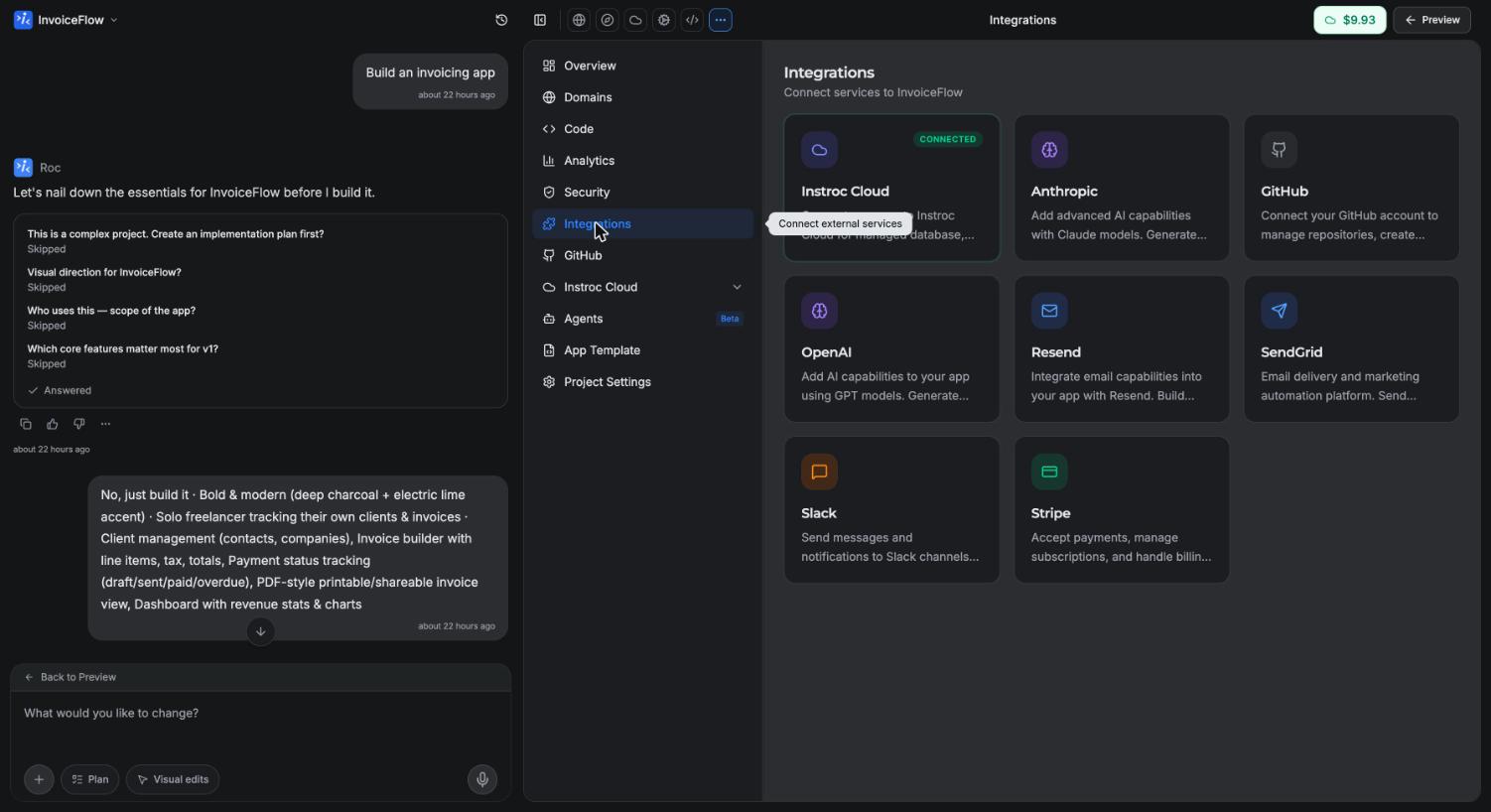
The eight integrations
The panel shows eight cards. Two are platform cards that are part of Instroc itself, and six connect external services.
| Integration | What it does | How you connect | Availability |
|---|---|---|---|
| Instroc Cloud | Managed database, storage, authentication, and serverless functions, all built in | Always connected; clicking opens the Cloud section | Every plan |
| Stripe | Accept payments in your app | Hosted onboarding, no API keys | Every plan |
| Resend | Outbound email from your app | Paste an API key | Pro or Business |
| SendGrid | Outbound email, including template emails | Paste an API key | Pro or Business |
| OpenAI | Text generation and embeddings inside your app | Paste an API key | Pro or Business |
| Anthropic | Text generation inside your app | Paste an API key | Pro or Business |
| Slack | Send messages and post to channels | Paste a bot token | Pro or Business |
| GitHub | Sync your project's code with a repository | Connect your GitHub account | Every plan |
Instroc Cloud is pinned first and always shows as Connected, because it is the backend every project gets. Stripe stands apart from the other external services: it works on every plan, so you can wire up payments even while testing on the Free tier. See Payments with Stripe for the full walkthrough.
The GitHub card takes you to the GitHub section of the workspace, where you connect your account and link a repository. Read more on the GitHub page.
How connecting works
For key-based services (Resend, SendGrid, OpenAI, Anthropic, Slack), you open the card, review the Overview, Capabilities, Example Prompts, and Requirements sections, and paste your key into the connect form. Each card links to Get API Key and Documentation so you can create a key with the provider first.
Your keys are stored server-side only. Whenever a key appears anywhere in the product it is shown redacted, and Roc never asks you to paste a key into the chat. If you describe a feature that needs a connected service, for example "email customers a receipt with Resend", Roc surfaces a connect card in the conversation that points you to the Integrations panel instead. Once a service is connected you can Re-verify the key or Disconnect it at any time from its card.
You do not need to connect anything before asking for a feature. Build the flow first, and Roc will tell you when a service needs connecting to go live.
Tier requirements
Key-based integrations (Resend, SendGrid, OpenAI, Anthropic, Slack) require a Pro or Business plan. If you are on a lower tier the panel shows an upgrade prompt when you try to connect. Stripe is the exception and works on every plan, and the Instroc Cloud and GitHub platform cards are available to everyone. See Plans for what each tier includes.
How integration usage is billed
Calls your app makes to a connected service count as integration calls and bill to your Instroc Cloud usage, not to your AI credits. Credits pay for Roc's work while you build; Cloud usage pays for what your published app does at runtime. Payment and email actions run under tighter rate limits than other integration calls. The current rate for integration calls is listed on the Cloud billing page, and you can see live rates at instroc.com/cloud.
You may not need an email integration
A common surprise: contact forms, feedback forms, and waitlists do not need Resend or SendGrid. Every Instroc Cloud project includes a built-in Inbox, and when a visitor submits a message you are emailed automatically at no cost. Reach for an email integration only when your app itself needs to send email to other people, such as newsletters or receipts. The Backend overview covers the Inbox in more detail.