Deploy your app
Publishing takes your app from a private preview to a live URL anyone can visit. The first time you publish, a four-step wizard walks you through the address, access, presentation, and a security check; after that, pushing updates is a single click. Publishing is free on every plan and costs no credits.
Click the Publish button in the top right of the editor to begin.
Step 1: Address
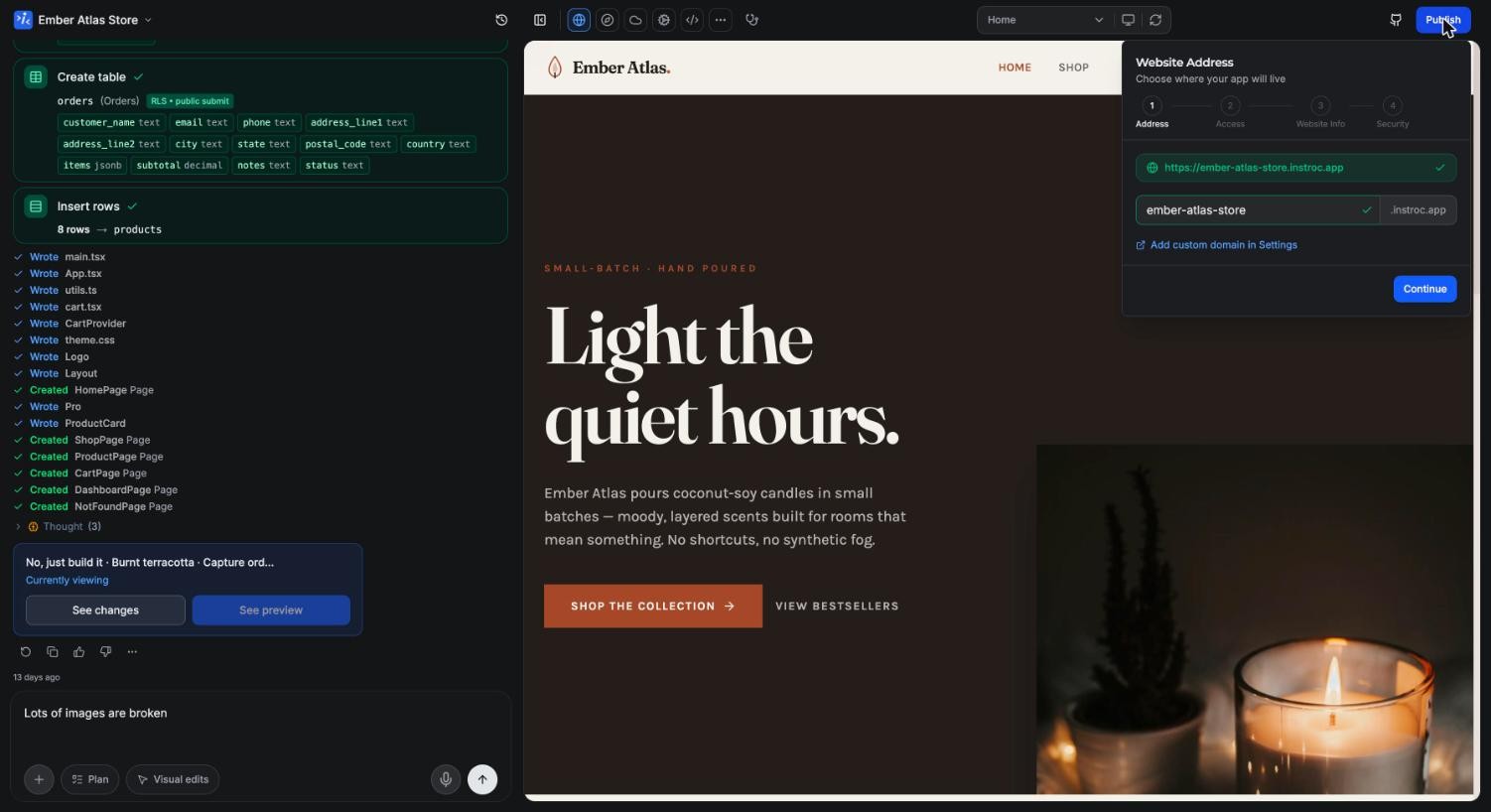
Choose the subdomain your app will live at, in the form yourname.instroc.app. Availability is checked live as you type; if a name is taken, the wizard says so and suggests alternatives. Subdomains must be at least 3 characters and use only lowercase letters, numbers, and hyphens.
Pick something you are happy to share, since this address goes on the links you send out. You can connect a domain you own later; see Custom domains.
Step 2: Access control
Decide who can open your app:
- Public: anyone with the link can visit. This is the right choice for storefronts, portfolios, booking sites, and anything customer-facing.
- Private: only members of your workspace can open the app, signing in with their Instroc account. Good for internal tools. Private apps require a paid plan.
On the Free plan you will also see an Allow remix toggle. When it is on, visitors to your published app can clone its structure and code into their own dashboard, with "Remixed from" attribution back to you. Remixes never include your app's data, files, or secrets.
Step 3: Website info
This step shapes how your app presents itself. Upload an app icon (it doubles as the favicon), set the title, and write a description of up to 160 characters. Together these control the browser tab, search results, and the social preview card shown when someone shares your link. You can refine these later, and per-page overrides live in Cloud > SEO Routes; see SEO routes.
Step 4: Security check
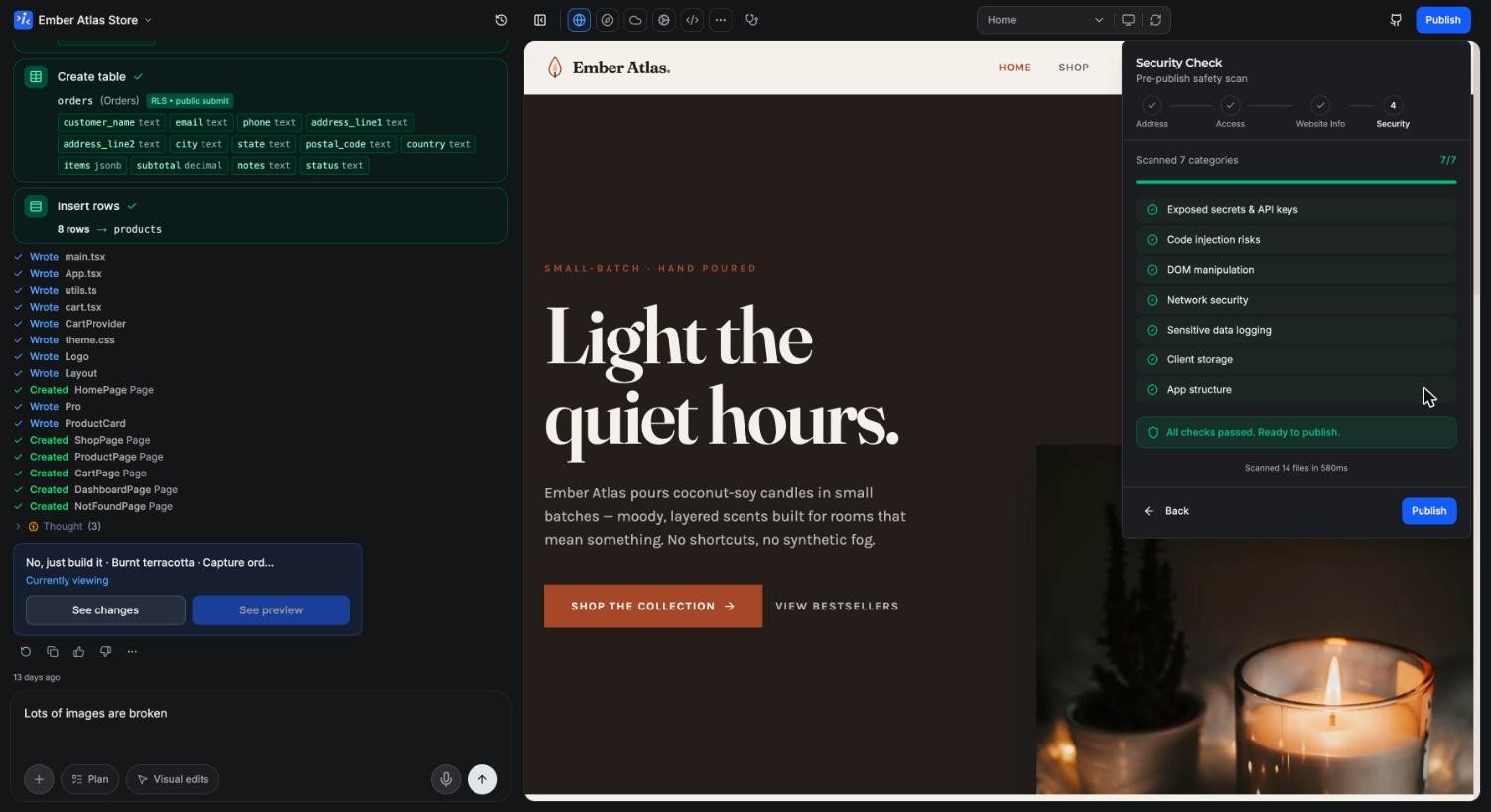
Before anything goes live, Instroc scans your app automatically for issues like exposed secrets, code injection risks, unsafe network calls, and sensitive data in logs. Findings that put you or your users at risk are blockers: the wizard shows "Fix Issues to Publish" and will not continue until they are resolved. Ask Roc to fix any finding directly from chat. Lesser findings are surfaced as warnings, which you can acknowledge and publish anyway.
Going live
Once you confirm, publishing runs through four visible stages: Bundling (preparing your app), Uploading (sending it to the cloud), Configuring (setting up hosting), and Live. It typically takes well under a minute.
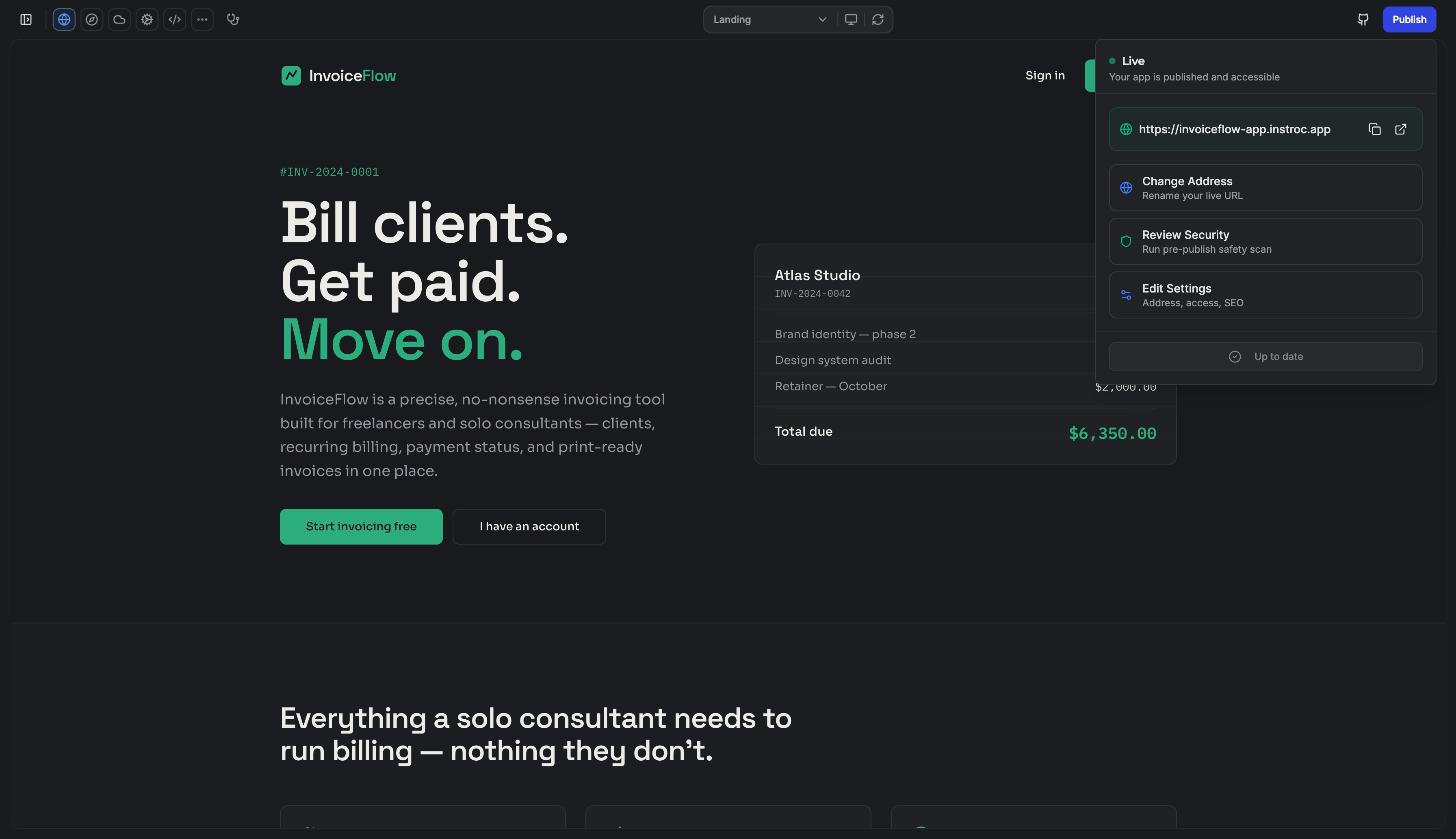
The success screen gives you the live URL with copy and open buttons, a Build Story toggle that lets you share how the app was built, a share shortcut for X, and an embeddable stats badge for showing off your app's traffic. From here you can also edit settings or republish.
Updating a live app
Publishing is not one-way. Keep building in the editor, and your live app stays exactly as published until you push again. When there are unpublished changes, the Publish button shows an amber dot; open it and hit Update to ship the latest version. When live matches the editor, the footer reads "Up to date". Version history still applies, so you can restore an earlier version and publish that instead; see the AI assistant for how versions work.
Changing the address
You can change your subdomain later from the publish popover's Change Address option or the Domains panel. Confirming the change is its own Save new address action, distinct from republishing, so you do not need to push a new version for it to take effect.
Renaming moves your live address. Your current link, and any URLs you have already shared in bios, emails, or posts, will stop working. Change the address early if you are going to, before the link spreads.
If you connect a custom domain, it becomes the primary address and your instroc.app subdomain is shown as "Also live at...". Details in Custom domains.
Unpublishing
To take an app offline, go to Project Settings > Danger Zone > Unpublish project. The published URL stops being accessible, but your project, its code, and its data remain untouched in the editor, and you can publish again whenever you like.
What publishing costs
Nothing. Publishing consumes no credits on any plan, including Free, where apps ship on your instroc.app subdomain with a small Instroc badge (paid plans remove it). Once live, your app's actual usage (requests, storage, bandwidth) draws from your Instroc Cloud allowance; see Cloud billing and current rates at instroc.com/cloud.
For the deeper reference on everything above, see Publishing.